Showing posts with label AIX. Show all posts

Monday, August 29, 2011

OS Unix locations of the device files on the respective systems


All you have to do is remember the locations of the device files on the respective systems. The following tables will help you do that for the most commonly used devices.
AIX File System Device Files
Block
Character
/dev/hd1
/dev/rhd1
/dev/hd2
/dev/rhd2
/dev/hd3
/dev/rhd3
/dev/hd*
/dev/hd*
HP-UX File System Device Files
Block
Character
/dev/dsk/c201d0s0
/dev/rdsk/c201d0s0
/dev/dsk/c201d1s0
/dev/rdsk/c201d1s0


/dev/dsk/c201d2s0
/dev/rdsk/c201d2s0
/dev/dsk/c201d*s0
/dev/rdsk/c201d*s0
AIX Tape Drive Device Files
File
Meaning
/dev/rmt*
Rewind on close, no retension on open, high density
/dev/rmt*.1
No rewind on close, no retension on open, high density
/dev/rmt*.2
Rewind on close, retension on open, high density
/dev/rmt*.3
No rewind on close, retension on open, high density
/dev/rmt*.4
Rewind on close, no retension on open, low density
/dev/rmt*.5
No rewind on close, no retension on open, low density
/dev/rmt*.6
Rewind on close, retension on open, low density
/dev/rmt*.7
No rewind on close, retension on open, low density
HP-UX Tape Drive Device Files
File
Meaning
/dev/rmt/c201d*c
Rewind on close, compress data
/dev/rmt/c201d*cb
Rewind on close, compress data, Berkeley style
/dev/rmt/c201d*cn
No rewind on close, compress data
/dev/rmt/c201d*cnb
No rewind on close, compress data, Berkeley style
/dev/rmt/c201d*h
Rewind on close, high density
/dev/rmt/c201d*hb
Rewind on close, high density, Berkeley style
/dev/rmt/c201d*hn
No rewind on close, high density
/dev/rmt/c201d*hnb
No rewind on close, high density, Berkeley style
/dev/rmt/c201d*l
Rewind on close, low density
/dev/rmt/c201d*lb
Rewind on close, low density, Berkeley style
/dev/rmt/c201d*ln
No rewind on close, low density
/dev/rmt/c201d*lnb
No rewind on close, low density, Berkeley style
/dev/rmt/c201d*m
Rewind on close, medium density
/dev/rmt/c201d*mb
Rewind on close, medium density, Berkeley style
/dev/rmt/c201d*mn
No rewind on close, medium density
/dev/rmt/c201d*mnb
No rewind on close, low density, Berkeley style
NoteHigh density is 6250 bpi, medium is 1600 bpi, and low is 800 bpi. For AT&T-style devices the tape is positioned after the EOF following the data just read. For Berkeley-style devices, the tape is not repositioned in any way.
AIX Floppy Drive Device Files
Block
Character
/dev/fd0
/dev/rfd0
HP-UX Floppy Drive Device Files
Block
Character
/dev/floppy/c201d0s0
/dev/rfloppy/c201d0s0

Monday, July 18, 2011

How to upgrade AIX from version 5.3 to version 6.1


This document describes updating a p505 server from AIX 5.3 to AIX 6.1

Preparation

IMPORTANT - Read the release notes for the version of AIX you are upgrading to
The release notes for AIX 6.1 can be found here --> AIX 6.1 release notes
Note - POWER3 processors are NOT supported by AIX 6.1
  • Ensure you do a full system backup and ensure that you create a mksysb before upgrading AIX.
  • Check if the hardware microcode is up to date - see the microcode update document on this web site.
  • Ensure all hardware including external devices are connected and powered on.
  • Check for any existing faults on the server using the command errpt -a and fix as required.
  • Ensure that there is enough free disk space available.
  • On the server you want to upgrade check what disk rootvg is installed on.
  • To do this type lsvg -p rootvg. In this case I found rootvg to be installed on hdisk0.
  • Check that the CDROM drive is listed in the bootlist before the hard disk by typing bootlist -m normal -o
  • If the CD drive is not listed before the hard disk i.e. hdisk0 cd0, then change the boot order by typing bootlist -m normal cd0 hdisk0.
  • It is advisable to reboot the server before updating it to ensure that if the server fails to reboot the cause can be more easily determined and not attributed to the update process.
  • To reboot the server shutdown any applications and then type shutdown -Fr.
  • Also run lppchk -v, this will check to see if all the currently installed software is correctly entered in the Software Vital Product Database (SWVPD) and that all filesets have all the required requisites and are completely installed.

Upgrading

Put the AIX 6.1 base operating system CD or DVD into the CD/DVD drive
The console for this upgrade was a dumb vt100 type terminal, the display may be slightly different for a graphical display
Reboot the server type shutdown -Fr
The server should boot off the media in the CD/DVD drive and a screen should display some selectable options as follows
-----------------------------------------------------------------------------------------------------------------------
1 = SMS menu    5 = Default bootlist
8 = Open Firmware   6 = Stored bootlist
-----------------------------------------------------------------------------------------------------------------------
Ignore these for now and the installation should continue
The next screen should display
-----------------------------------------------------------------------------------------------------------------------
Starting Software
Please wait
-----------------------------------------------------------------------------------------------------------------------
Next screen
-----------------------------------------------------------------------------------------------------------------------
Please define the System Console
Type a 1 and press Enter to use this terminal as the system console
-----------------------------------------------------------------------------------------------------------------------
Type 1 and press enter
-----------------------------------------------------------------------------------------------------------------------
1. Type 1 and press Enter to have English during install
>>>choice[1]:
-----------------------------------------------------------------------------------------------------------------------
Again type 1 and press enter
-----------------------------------------------------------------------------------------------------------------------
Welcome to Base Operating System Installation and Maintenance
Type the number of your choice and press Enter. Choice is indicated by >>>
>>>1. Start Install now with Default Settings
   2. Change/show Installation Settings and Install
   3. Start Maintenance Mode for System Recovery
   4. Configure Network Disks (iSCSI)
   88 Help?
   99 Previous Menu
   Choice[1]: 2
-----------------------------------------------------------------------------------------------------------------------
Type 2 and press enter to change the installation settings
-----------------------------------------------------------------------------------------------------------------------
Installation and Settings
Either type 0 and press Enter to install with current settings 
or type the number of the setting you want to change and press Enter
1. System Settings:
   Method of Installation ......................Migration
   Disk where you want to Install ..............hdisk0    
2. Primary Language Environment settings (AFTER Install):
   Cultural Conventions ........................English (United States)
   Language ....................................English (United States)
   Keyboard ....................................English (United States)
   Keyboard Type ...............................Default
3. Security Model...............................Default
4. More Options (Software install options)
>>> 0 Install with the current settings listed above
88 Help?
99 Previous Menu
>>> Choice[0]:
-----------------------------------------------------------------------------------------------------------------------
Change the "Method of Installation" to "Migration" if not already selected
Ensure that the "Disk where you want to Install" is set to the correct disk
Change the "Cultural Conventions", "Language" and "Keyboard" to your prefered location
Type 4 and press enter for "More Options (Software install options)"
-----------------------------------------------------------------------------------------------------------------------
Install Options
1. Enable System Backup to install any system....Yes
2. Import User Volume Groups.....................Yes
3. Remove Java 1.1.8 Software....................No
>>> 0 Install with the current settings listed above
88 Help?
99 Previous Menu
>>> Choice[0]:
-----------------------------------------------------------------------------------------------------------------------
Check the values for the fields are as listed above and then press enter to accept the default value of 0 "Install with the current settings listed above
-----------------------------------------------------------------------------------------------------------------------
Migration Installation Summary
Disks: hdisk0
Cultural Convention: en_GB
Language: en_US
Keyboard: en_GB
Import User Volume Groups: Yes
Enable System Backup to install any system: Yes
Remove Java 1.1.8 Software: No
>>> 1 Continue with Install
88 Help?
99 Previous Menu
>>> Choice[1]:
-----------------------------------------------------------------------------------------------------------------------
Check the fields if all the values as correct then press enter to accept the default value 1 "Continue with Install
-----------------------------------------------------------------------------------------------------------------------
Migration menu preparation
Please wait
Approximate   Elapsed time
% task complete   (in minutes)
-----------------------------------------------------------------------------------------------------------------------
Next screen
-----------------------------------------------------------------------------------------------------------------------
Migration Confirmation
Either type 0 and press Enter to continue the installation 
or type the number of your choice and press Enter
1. List the saved Base System Configuration files which will not be merged into the system
   These files are saved in /tmp/bos
2. List the filesets which will be removed and not replaced
3. List directories which will have all current contents removed
4. Reboot without migrating
Acceptance of license agreements is required before using system. 
You will be prompted to accept after the system reboots
>>> 0 Continue with the migration
WARNING: Selected files, directories and filesets (installable options) 
from the Base System will be removed. 
Choose 2 or 3 for more information
88 Help?
99 Previous Menu
>>> Choice[0]:
-----------------------------------------------------------------------------------------------------------------------
Have a look at each menu option then type 0 and press enter to "Continue with the migration"
-----------------------------------------------------------------------------------------------------------------------
Saving system configuration files in /tmp/bos
Removing obsolete filesets, directories and files
Installing Base Operating System
Please wait
Approximate   Elapsed time
% task complete   (in minutes)
-----------------------------------------------------------------------------------------------------------------------
The installation should continue and eventually finish and present a login screen

Login and check the version of AIX by typing oslevel -s
And that's it. You may want to apply the latest Technology Level and Fix Pack now.

Wednesday, June 15, 2011

AIX Command for SAP Basis

Simple commands
chgrp grp filelist : Change the group that the file(s) belong to.
chmod 777 filelist : Change the rights of the file(s). 777: owner-world-user. 7: read-write-delete (=111)
chown user filelist : Change the owner of the file(s)
cp file1 file2 : Copy file1 to file2
cp /dev/null file : Clear all contents of file
errpt : Hardware error-report (IBM-unix)
ls –ltr : Show filelist, –parameters: l: show fileattributes , t: sort by time, r: reverse sortorder
more

mv file1 file2 : Move command
ps –ef : Show all running processes, -e, -f
vi : The famous vi-editor

2 A little more complex commands
kill : Kill a process as if it is cancelled. Child processes are killed as well.
kill –1 : Kill a process as if the user is logging out. Child processes are killed as well.
kill –9 : Kill a process as brutal as possible. Child-processes are not touched.
kill –USR2 : Increases TRACE by 1
kill –USR1 : ecreases TRACE by 1. When TRACE = 0 all open trace files are closed and can be cleared using ‘cp /dev/null filename’.
lslv : Show the logical volumes
lsvg : Show the volumegroups
sappfpar check pf= : Checks the profileparameter. Do they exist and do they have correct values.
set VAR VAL : set environment variable VAR to value VAL
printenv : prints the environementvariables
ps –ef grep xxx : Monitor processes with name containing xxx
ps –u : Monitor processes run by user

Friday, June 10, 2011

Installing SAP R/3 Application server on Linux

In this article, I will give you step by step for installation of application server system SAP R / 3 using the Linux OS. Why use Linux? Instead better use Windows? There are some things that a consideration to me why using Linux include:


  1. Database Instance that will be used is Oracle with a platform AIX (IBM's proprietary UNIX). Between AIX and Linux, UNIX machines are equally so compatibility will be more awake than using Windows.
  2. Linux is free and open source. By nature, I was much easier to perform tuning and search for references on the Internet.
  3. Communication between Linux and AIX will use NFS, while Windows and AIX will use SAMBA.
  4. Linux machine is more stable, reliable, and most importantly the virus-immune.
  5. Linux is also less expensive in terms of maintenance, hardware requirements, compared to using Windows (must have a license) and AIX (in terms of licensing and hardware).
Selection of Linux distributions that will be used freely. I prefer the distro that can use the concept of LVM (Logical Volume Management) so I can make a logical volume space maintenance easier. I will try to explain using Redhat machine. I personally have tried to use SuSE as well. The main difference between them is the problem of the default file system used. Redhat uses ext3, while SuSE using reiserfs.

Excellence ext3 and reiserfs is the ability to manage the logical volume size online.So we can easily increase the size of logical volumes without having to unmount the logical volume.We start, yes ...

1. OS InstallationWhen the OS installation, prepare a sufficient partition for the installation of SAP. The table on the following attachment (Disk) The following will give an explanation setting partitions using LVM.

2. Installing the Central InstanceSince we will use an existing Database Instance on AIX 64 bit machine, then we have to install the Central Instance. Installing the Central Instance package in Linux is to get the executable files from the SAP kernel for Linux.
Set environment needed to run sapinst among others:
LD_LIBRARY_PATH = / sapmnt / [SID] / exeSAPINST_JRE_HOME = / opt / [location of java runtime environment]DISPLAY = [IP_Address of Windows Client]: 0.0umask = 22

To test, run the xclock command on the console. If an analog clock image, it means that environment is set correctly. If not appear, review the value of each environment variable you.


Go to the directory sapinst. Sapinst Run command on the console.


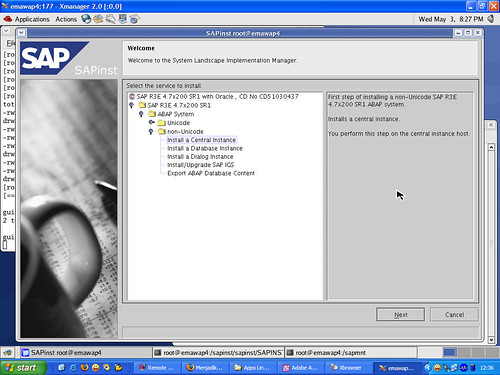
Choose Install Central Instance.


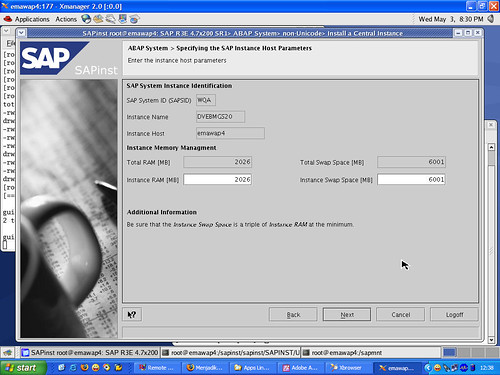
Fill in the information to the SAP System ID (SAPSID) and Instance Number.Customize with existing information on the Database Instance on AIX.


Fill in the information database ID (DBSID) and Database Host.


Let the information by default. This we do because this server will only be used asapplication servers.


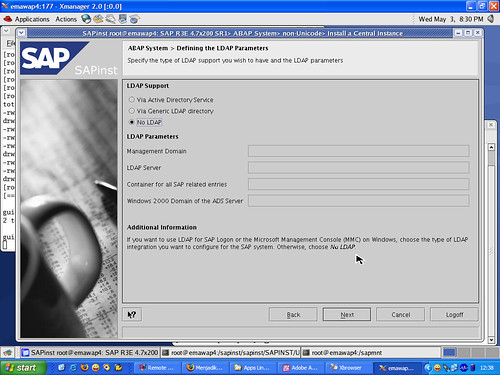
Choose No if you do not use LDAP LDAP facilities on your network.


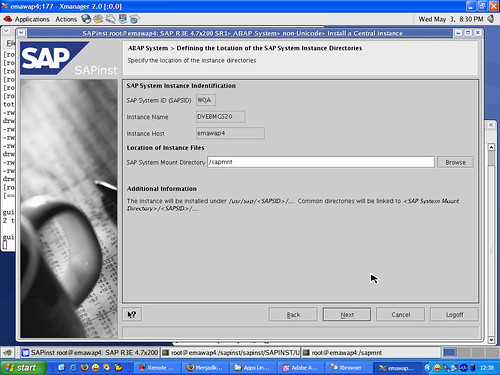
Make sure that this directory is exist.


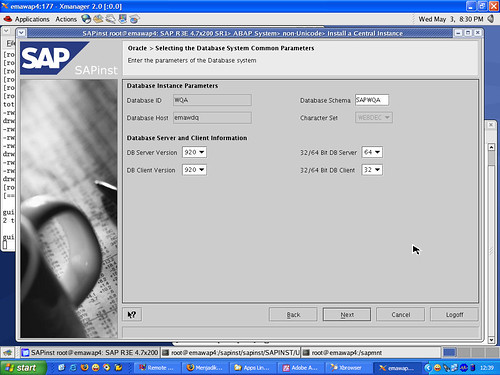
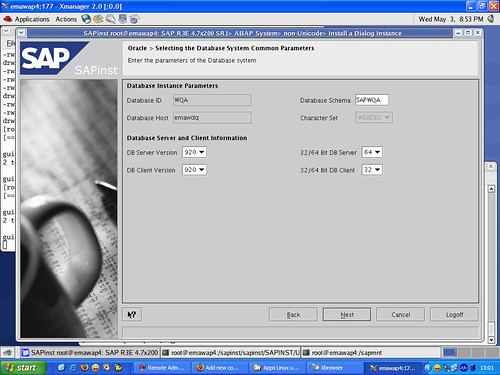
Make sure the correct information Database Schema. And do not forget the type ofdatabase server is running on AIX is 64 bits.


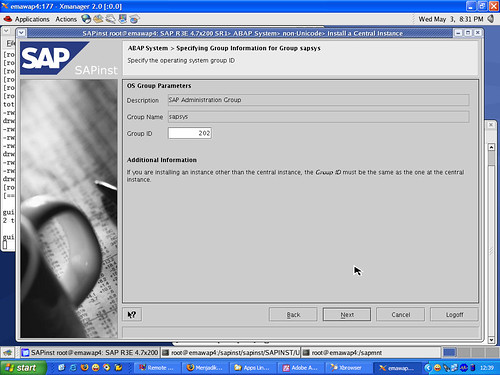
Information about the group sapsys. Noteworthy is the Group ID must match the Group ID on the AIX machine (as a database server).


Information about the group dba. Noteworthy is the Group ID must match the Group IDon the AIX machine (as a database server).


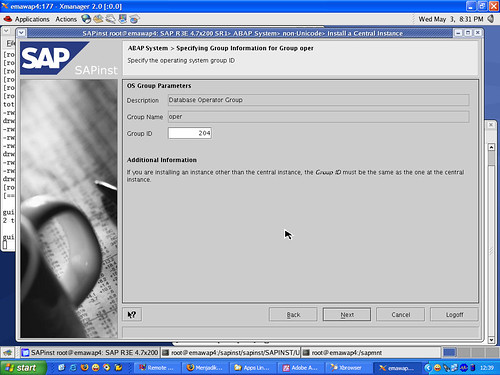
Information about the group shift gears. Noteworthy is the Group ID must match the Group ID on the AIX machine (as a database server).


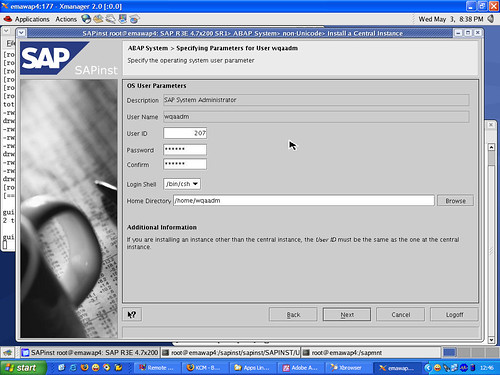
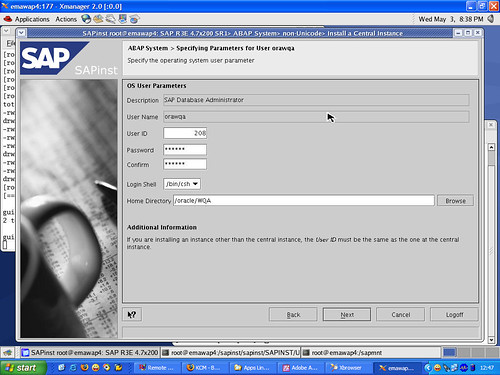
Information about the user [sid] adm. Must be considered is the User ID andpassword must be the same as your User ID and password on AIX machine.


Information about the user ora [sid]. Must be considered is the User ID and passwordmust be the same as your User ID and password on AIX machines.


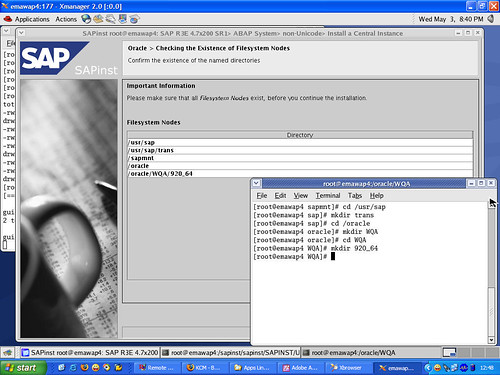
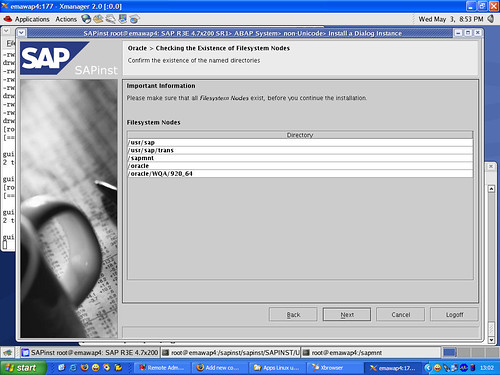
Note the directory listing above. These directories must exist. If not exist, create itnow!. The directory must exist is / usr / sap, / usr / sap / trans, / sapmnt, / oracle, /oracle / [SID] / 920_64.


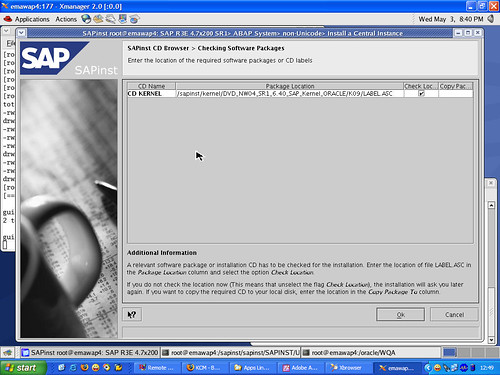
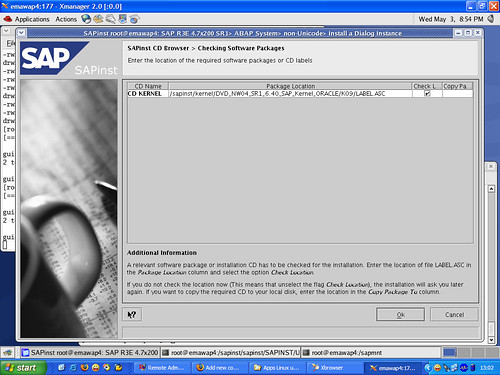
You must indicate the location of the SAP Kernel for Linux is available. You should be ready.


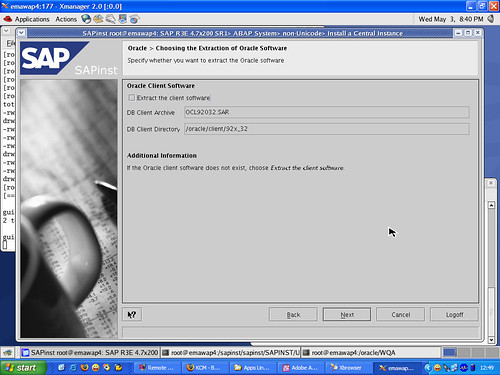
Information extraction of Oracle Client. Remove the check mark. We will not installOracle Client now.


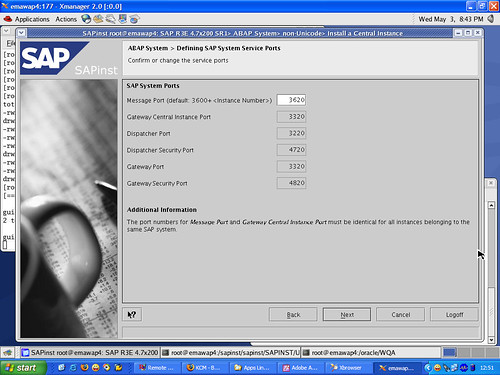
Information on ports used by SAP applications. The following ports should not beused by other applications, which is 36 [system number], 33 [system number], 32[system number], 47 [system number], and 48 [system number]. Please edit the file /etc / services.

Information listener name and port used by the listener. Make sure the port is not usedby other applications.


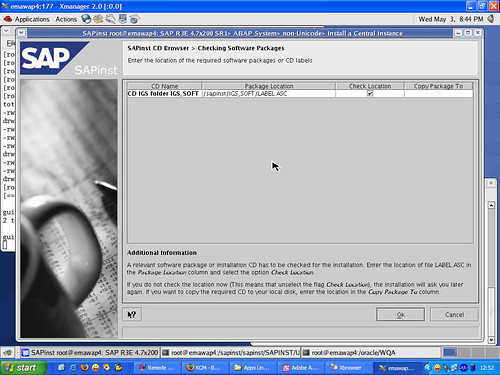
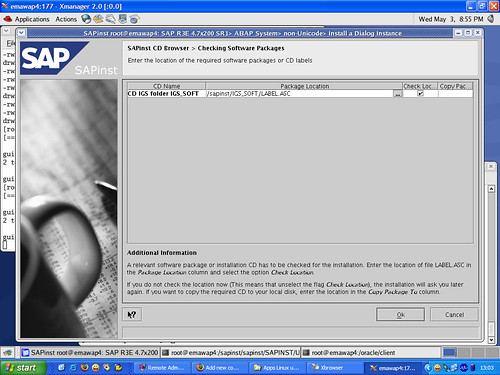
Show location IGS_SOFT.


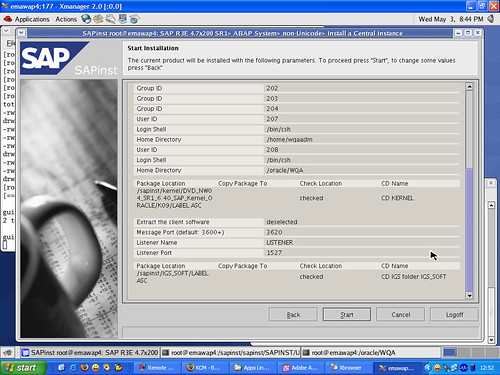
Summary information on the Central Instance installation. Check back and you stillcan click the back button if there is not yet appropriate.


Installing the central instance is running.


Congratulations!! Installing the central instance successfully. We're already in half way.Please break before ... enjoy hot coffee and fried bananas you ...:)

3. Installing Dialog Instance

Set environment needed to run sapinst among others:

LD_LIBRARY_PATH = / sapmnt / [SID] / exe
SAPINST_JRE_HOME = / opt / [location of java runtime environment]
DISPLAY = [IP_Address of Windows Client]: 0.0
umask = 22

To test, run the xclock command on the console. If an analog clock image, it means that environment is set correctly. If not appear, review the value of each environment variable you.
Make sure the machine Linux and AIX machines know each other. Perform the addition of the IP Address and hostname Linux on AIX machines and vice versa.

From the AIX machine via NFS, shared directory / sapmnt / [SID] / global and /sapmnt / [SID] / profile. From the Linux machine, mount the directory with the samemount point.


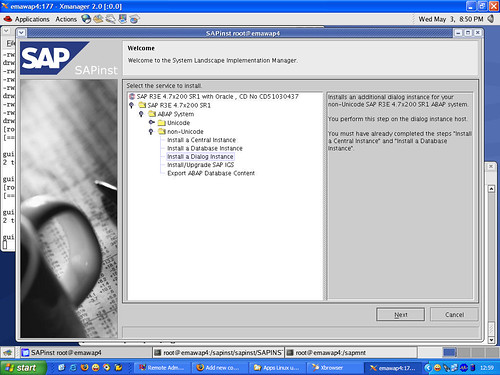
Screen installation election. Select Non-Unicode_Install Dialog Instance.

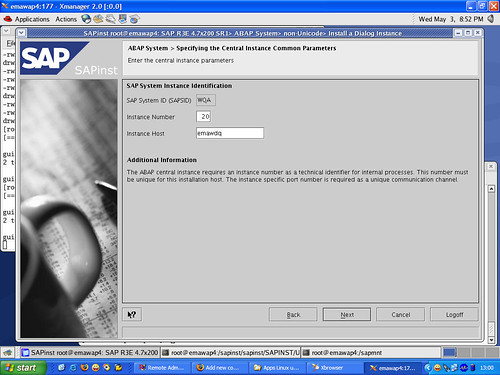
Information about the Central Instance. Remember! instance number and instanceinformation are hosted on the AIX machine.


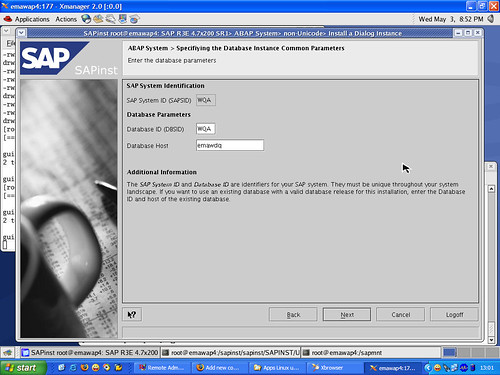
Information Database ID (DBSID) and Database Host.


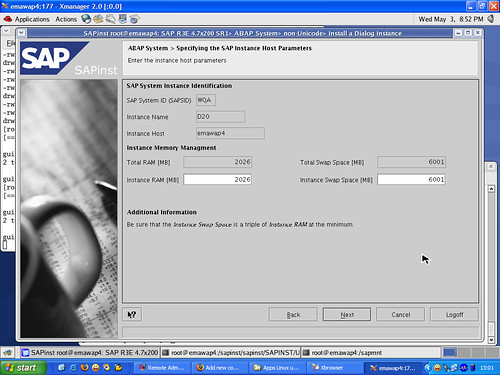
Information hosted instance of parameters. Leave the default.


Choose No if you do not use LDAP LDAP on the network.


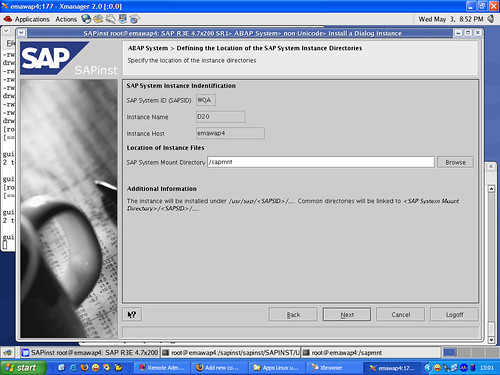
Location SAP Mount Directory is on / sapmnt. Make sure this directory exists.


Note the type of information Database Schema and Database servers. Do not forgetthat the database server that we use is 64 bits.


Note the directory listing above. These directories must exist. If not exist, create itnow!. The directory must exist is / usr / sap, / usr / sap / trans, / sapmnt, / oracle, /oracle / [SID] / 920_64.


You must indicate the location of the SAP Kernel for Linux is available. You should be ready.


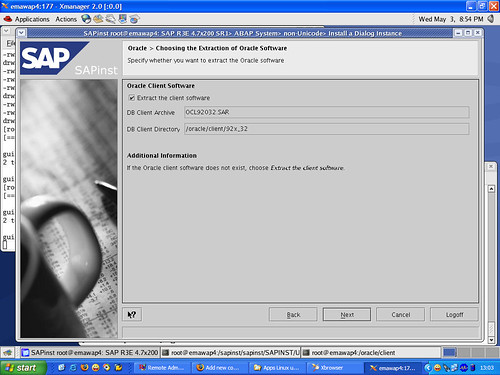
Now is the time for us to install Oracle Client. Tick ​​the option extract oracle client.


Information used ports in the SAP. Should have been prepared at the time ofinstallation of the Central Instance.


Setting name of the listener and the listener port name.


Location IGS_SOFT.


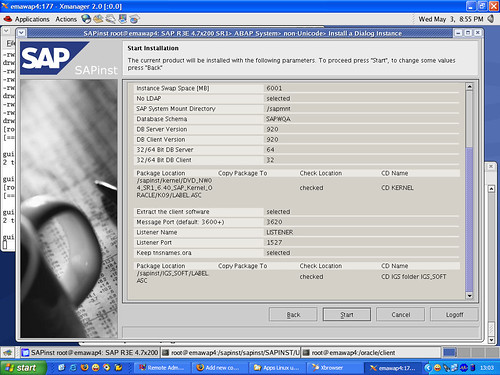
Installation Summary Dialog Instance.

Installing Dialog Instance is running.


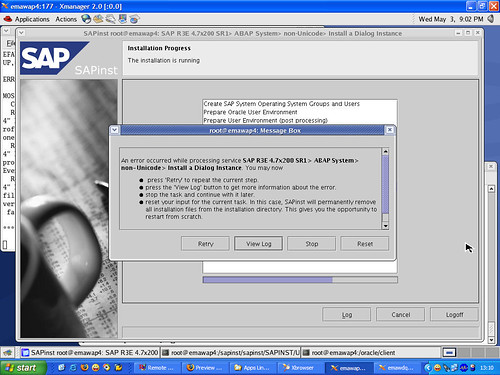
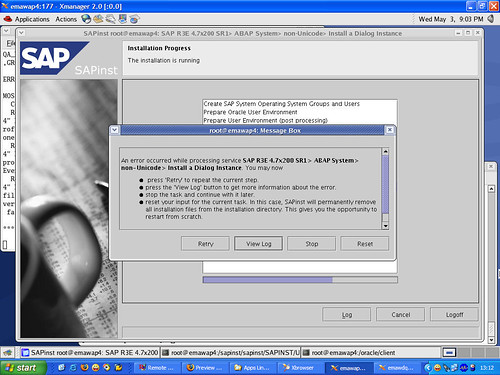
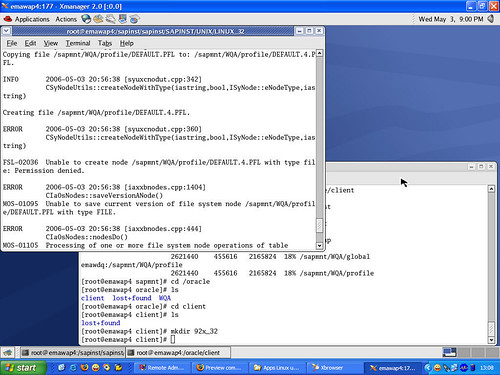
Error will be out due to lack of permissions on the directory NFS / sapmnt / [SID] /profile.


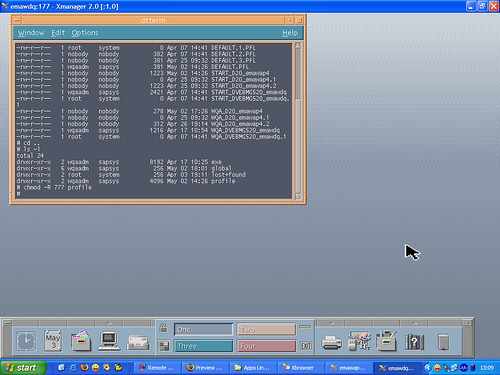
From the AIX machine, change the first permissions recursively to 777, the command# chmod-R / sapmnt / [SID] / profile. Continue the installation until it met the error again.


Errors occur because the permissions on the directory NFS / sapmnt / [SID] / profileon AIX machines.


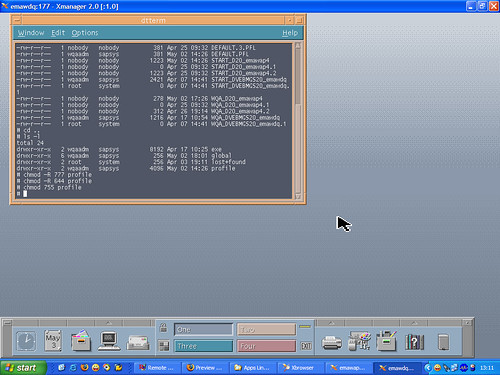
Restore permissions to its original position. Use the following commands in succession: # chmod-R 644 profile, # chmod 755 profile.


This error is a bug from SAP. Please edit the file keybd.xml. Search keyword"ERROR" and change it to OK. Save, then run back to the old installation.


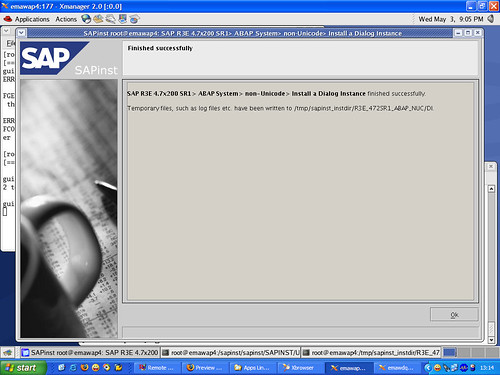
Congratulations! Dialog Instance installation has been completed.

4. Next run the dialog instance. Previous sure central instance and database server is running on the AIX machine.

Now we already have a Linux application servers are cheap, reliable and stable.There is more to be dituning, later we went on again.