Berikut link untuk download SAPGUI for Java for Linux versi 7.40 rev 5
http://adf.ly/1VCAMW
Selamat men-download !!
Showing posts with label SAPGUI. Show all posts
Showing posts with label SAPGUI. Show all posts
Friday, January 15, 2016

Download : SAPGUI for Java for Linux 7.30 rev 9
Berikut link untuk download SAPGUI for Java for Linux versi 7.30 rev 9
http://adf.ly/1VCAJv
Selamat men-download !!
http://adf.ly/1VCAJv
Selamat men-download !!
Friday, March 23, 2012
How to Execute OS Level command from SAPGUI
Step by Step Procedure to Execution of OS Level command from SAPGUI
1) Execute Transaction Code SA38/ SE38.
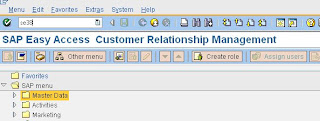
2) Write the report name RSBDCOS0
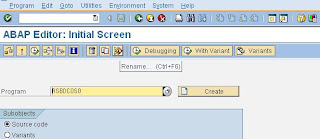
3) Execute the Report
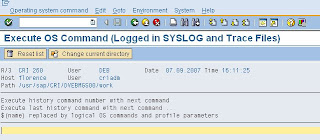
4) Type any OS Level Command and do work from GUI
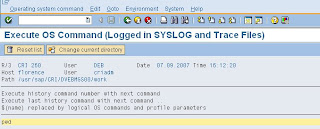
1) Execute Transaction Code SA38/ SE38.

2) Write the report name RSBDCOS0

3) Execute the Report

4) Type any OS Level Command and do work from GUI

Tuesday, February 7, 2012
SAP GUI for HTML – running SAP on a PC that does not have the SAP client installed
There are three versions of the SAP GUI the Standard version, which is for Win32, a version for none windows based PC’s which is SAP GUI for Java and SAP GUI for HTML. Both the Win32 and Java version require some form of installation on every workstation. SAP GUI for HTML (Web GUI) requires no installation on each workstation other than a standard web browser.
SAP GUI for HTML then allows you to access SAP via a Web browser using the same screens, transaction codes etc as you would when using the standard Win32 GUI. All you have to do install the ITS which is a free download from SAP onto a server machine.
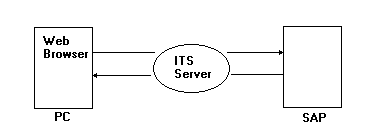
Advantages
- Still has same look and feel as standard SAP
- Don’t have to do any work other than install the ITS
- Don’t have to install SAP GUI onto PC
Disadvantages
- Still has same look and feel as standard SAP
- Requires a lot more network capacity (10x)
- Cant run every transaction (i.e. can’t handle SAP graphics)
To activate the SAP WebGui service (SAPGUI for HTML) in SAP WAS 6.40:
1) Make sure the HTTP service is running and note the port number (I think the default is 8001). Txn SMICM, then pushbutton “services” (3rd from the left).
2) Activate the webgui service. Txn SICF, navigate to default_host -> sap -> bc -> gui -> sap -> its -> webgui. Right-click webgui and “activate service”.
3) You should then be able to test the service. Right-click webgui then “test service”. Enter username/pswd, and voila!
2) Activate the webgui service. Txn SICF, navigate to default_host -> sap -> bc -> gui -> sap -> its -> webgui. Right-click webgui and “activate service”.
3) You should then be able to test the service. Right-click webgui then “test service”. Enter username/pswd, and voila!
The URL for the webgui will be:
http://:/sap/bc/gui/sap/its/webgui/!
Wednesday, December 21, 2011
Problems regarding SAPGUI history
SAPGUI has a handy feature that remembers fields contents, This is pretty useful especially when loging into SAP. I simply type the first letter of my UserID, press the Arrow-Down key and finally press ENTER. There ya go, my whole userID is typed for me.
Unfortunately, sometimes SAP stops showing old entries. Here’s how to troubleshoot this:
Basic steps:
- Press ALT-F12 (or click the color-monitor icon)
- Choose OPTIONS
- Click on the LOCAL DATA tab.
- Make sure that History is set to ON
- Make sure that Directory for Local Data really exists. if unsure, change that to C:
- If anything was changed, click on OK, stop your all SAPGUI sessions and do not forget to shutdown SAPLOGON (or SAPLOGON PAD)
- restart SAPGUI/SAPLOGON and check if all works
- Choose OPTIONS
- Click on the LOCAL DATA tab.
- Make sure that History is set to ON
- Make sure that Directory for Local Data really exists. if unsure, change that to C:
- If anything was changed, click on OK, stop your all SAPGUI sessions and do not forget to shutdown SAPLOGON (or SAPLOGON PAD)
- restart SAPGUI/SAPLOGON and check if all works
Low-Speed…
- in SAPLOGON, click once on the entry you wish to connect
- Click on CHANGE ITEM
- Click on ADVANCED
- Make sure that LOW-SPEED CONNECTION is not checked.
- Click on CHANGE ITEM
- Click on ADVANCED
- Make sure that LOW-SPEED CONNECTION is not checked.
Corrupted MDB
- in the directory “Directory for Local data” found in Alt-F12, You should find a SAPhistory*.MDB and SAPhistory*.LDB files, these may be corrupted.
Close down SAPGUI and SAPLOGON
- Delete all these files
- Note that all history will be lost but it may re-enable the functionnality
Close down SAPGUI and SAPLOGON
- Delete all these files
- Note that all history will be lost but it may re-enable the functionnality
Corrupted DAO files
- SAPGUI uses the MsJet Access database engine to store history. These files may get ruined by another application.
- possible solution is to re-install SAPGUI from scratch
- other possibility is to re-install DAO. These files are available in the DAO35 or DAO36 folder of the SAPGUI installation CD. You can also get it Here
- possible solution is to re-install SAPGUI from scratch
- other possibility is to re-install DAO. These files are available in the DAO35 or DAO36 folder of the SAPGUI installation CD. You can also get it Here
Additional steps
- Make sure that SAPGUI is fully patched
- read OSS Note 199527.
- try rebooting your PC!
- read OSS Note 199527.
- try rebooting your PC!
Sunday, August 28, 2011
Howto Install SAPlpd Print server (Can be apply for SAPSprint)
Prerequire
- NT resouce kit (ntreskit)
INSTSRV.EXE,and SRVANY.EXE
- Create New SAPlpd.reg Regedit for SAPLpd and modify content (below information)
Step
1. Login Local Administrator and install saplpd on Print server
2. Copy folder ntreskit to c:\Program Files\
3. Run DOS prompt and change to c:\Program Files\ntreskit .
4. Run command :
instsrv.exe SAPlpd “c:\Program Files\ntreskit\srvany.exe“
instsrv.exe SAPlpd “c:\Program Files\ntreskit\srvany.exe“
5. Check values in SAPlpd.reg for saplpd installation path
Value-Name String:
Application C:\Program Files\SAP\FrontEnd\SAPgui\SAPlpd\SAPlpd.exe
AppDirectory C:\Program Files\SAP\FrontEnd\SAPgui\SAPlpd
AppParameters -d
Application C:\Program Files\SAP\FrontEnd\SAPgui\SAPlpd\SAPlpd.exe
AppDirectory C:\Program Files\SAP\FrontEnd\SAPgui\SAPlpd
AppParameters -d
6. Double click SAPlpd.reg to add in regedit
Check
HKEY_LOCAL_MACHINE/SYSTEM/CurrentControlSet/Services
-> SAPlpd ->
-> SAPlpd ->
ObjectName -> value LocalSystem
-> SAPlpd ->
-> ObjectName -> value ImagePath
And
-> SAPlpd ->Parameters
-> ObjectName -> value ImagePath
7. Open services on windows and start service SAPLPD and verify automatic start(and click start)
8. Check port 515 Run command :
netstat -an|more
Active Connections
Proto Local Address Foreign Address State
TCP 0.0.0.0:135 0.0.0.0:0 LISTENING
TCP 0.0.0.0:445 0.0.0.0:0 LISTENING
TCP 0.0.0.0:515 0.0.0.0:0 LISTENING
-----------------------
SAPlpd.reg content
------------------------
REGEDIT4
[HKEY_LOCAL_MACHINE\SYSTEM\CurrentControlSet\Services\SAPlpd]
"Type"=dword:00000010
"Start"=dword:00000002
"ErrorControl"=dword:00000001
"ImagePath"=hex(2):63,3a,5c,50,72,6f,67,72,61,7e,31,5c,6e,74,72,65,73,6b,69,74,\
5c,73,72,76,61,6e,79,2e,65,78,65,00
"DisplayName"="SAPlpd"
"ObjectName"="LocalSystem"
C:\Program Files\SAP\FrontEnd\SAPgui\SAPlpd
[HKEY_LOCAL_MACHINE\SYSTEM\CurrentControlSet\Services\SAPlpd\Parameters]
"Application"="C:\\Program Files\\SAP\\FrontEnd\\Sapgui\\SAPlpd\\SAPlpd.exe"
"AppDirectory"="C:\\Program Files\\SAP\\FrontEnd\\Sapgui\\SAPlpd"
"AppParameters"="-d"
[HKEY_LOCAL_MACHINE\SYSTEM\CurrentControlSet\Services\SAPlpd\Security]
"Security"=hex:01,00,14,80,c0,00,00,00,cc,00,00,00,14,00,00,00,34,00,00,00,02,\
00,20,00,01,00,00,00,02,80,18,00,ff,01,0f,00,01,01,00,00,00,00,00,01,00,00,\
00,00,20,02,00,00,02,00,8c,00,05,00,00,00,00,00,18,00,8d,01,02,00,01,01,00,\
00,00,00,00,01,00,00,00,00,74,00,73,00,00,00,1c,00,fd,01,02,00,01,02,00,00,\
00,00,00,05,20,00,00,00,23,02,00,00,76,00,63,00,00,00,1c,00,ff,01,0f,00,01,\
02,00,00,00,00,00,05,20,00,00,00,20,02,00,00,76,00,63,00,00,00,1c,00,ff,01,\
0f,00,01,02,00,00,00,00,00,05,20,00,00,00,25,02,00,00,76,00,63,00,00,00,18,\
00,fd,01,02,00,01,01,00,00,00,00,00,05,12,00,00,00,25,02,00,00,01,01,00,00,\
00,00,00,05,12,00,00,00,01,01,00,00,00,00,00,05,12,00,00,00
[HKEY_LOCAL_MACHINE\SYSTEM\CurrentControlSet\Services\SAPlpd\Enum]
"0"="Root\\LEGACY_SAPLPD\\0000"
"Count"=dword:00000001
"NextInstance"=dword:00000001
Friday, August 12, 2011
Tips on Patch Installation
Patches shouldn't be directly applied on the production system (PRD). We first need to apply it on the development (DEV) system and test the same.
Whenever there are patches available for installation, Please make sure that:
- Whenever you are applying ABAP and BASIS patches, it is recommended to have one version less than the latest.
- After you apply these patches, plan for your kernel upgrade which will work better in sync with the new BASIS and ABAP patches.
- Also, need to check for any SAPGUI patch available, otherwise dumps might error.
- ABAP+BASIS+Kernel+SAPGUI should be planned together and to be implemented together.
Monday, August 1, 2011
How to access SAPGUI through Excel
Process to integrate SAP GUI with Excel sheet , so in case you have number of systems to manage you can maintain passwordless login .
We will Use SAP Shortcut to achieve the same.
Enable Password field
1) open regedit
2) go to HKEY_CURRENT_USER\Software\SAP\
3)Right Click on SAP -->New--> Key with name SAPShortcut--> Then using Same above Step create a key name "Security" under "SAPShortcut"
4)Now Right Click on the Security --> New --> String Value Give name "EnablePassword" to this and Set it Value 1
5) Close window
Create Shortcut
6) Login to SAP
7) Got to Customize Local Layout or ALT+F12 , select create shortcut
8) Provide detail(Password etc) and save somewhere in desktop, we recommended to save in some secure folder as using this shortcut any one can login to SAP GUI without proving password
Integrate With Excel
9) Open excel , type SID or ant description you want to give for shortcut
10) Right click and select hyperlink (Select the shortcut you have created earlier)
11) Save file and then try to access , you will be routed to SAP GUI with couple of warnings , to avoid warning follow below steps
Microsoft Excel Warnings
12) Disable hyperlink warnings for 2007 Office programs
""To disable the hyperlink warnings in 2007 Office Programs when an http:// address, notes:// or an ftp:// address is used, you must create a new registry subkey. To do this, follow these steps:
Click Start, and then click Run.
In the Open dialog box, type regedit, and then click OK.
In Registry Editor, locate one of the following registry subkeys:
HKEY_CURRENT_USER\Software\Microsoft\Office\12.0\Common
HKEY_CURRENT_USER\Software\Policies\Microsoft\Office\12.0\Common
NoteYou only have to modify one of these registry subkeys. You do not have to modify both of them.
Note If the Security subkey already exists, skip to Step 6 after selecting the Security subkey.
Click the registry subkey, point to New on the Edit menu, and then click Key.
Type Security, and then press ENTER to name the key.
On the Edit menu, point to New, and then click DWORD Value.
Type DisableHyperlinkWarning, and then press ENTER to name the entry.
In the right pane, right-click DisableHyperlinkWarning, and then click Modify.
In the Edit DWORD Value dialog box, click Decimal, and then type 1 under Value data.
Note A value of 0 enables the hyperlink warning message. A value of 1 disables the hyperlink warning message.
Click OK.
Exit Registry Editor."
Still you will get one more warning to avoid that
Turn off the "Confirm open after download" option for the file type that you are trying to open
"Double-click My Computer.
On the Tools menu, click Folder Options.
On the File Types tab, select the appropriate file name extension SAP in the Registered File Types box, and then click Advanced.
Click to clear the Confirm open after download check box, and then click OK.
In the Folder Options dialog box, click Close.
Method 2: Modify the HKEY_CLASSES_ROOT\WMVFile\EditFlags registry subkey
Use this method if the warning message affects multiple computers. "
Now enjoy wil shortcuts , but dont forget to update shortcut if you will change your SAP password .
Moreover you can put one extra password for excel sheet also .
We recommend not to use this in any critical system as it can be a security issue.
We will Use SAP Shortcut to achieve the same.
Enable Password field
1) open regedit
2) go to HKEY_CURRENT_USER\Software\SAP\
3)Right Click on SAP -->New--> Key with name SAPShortcut--> Then using Same above Step create a key name "Security" under "SAPShortcut"
4)Now Right Click on the Security --> New --> String Value Give name "EnablePassword" to this and Set it Value 1
5) Close window
Create Shortcut
6) Login to SAP
7) Got to Customize Local Layout or ALT+F12 , select create shortcut
8) Provide detail(Password etc) and save somewhere in desktop, we recommended to save in some secure folder as using this shortcut any one can login to SAP GUI without proving password
Integrate With Excel
9) Open excel , type SID or ant description you want to give for shortcut
10) Right click and select hyperlink (Select the shortcut you have created earlier)
11) Save file and then try to access , you will be routed to SAP GUI with couple of warnings , to avoid warning follow below steps
Microsoft Excel Warnings
12) Disable hyperlink warnings for 2007 Office programs
""To disable the hyperlink warnings in 2007 Office Programs when an http:// address, notes:// or an ftp:// address is used, you must create a new registry subkey. To do this, follow these steps:
Click Start, and then click Run.
In the Open dialog box, type regedit, and then click OK.
In Registry Editor, locate one of the following registry subkeys:
HKEY_CURRENT_USER\Software\Microsoft\Office\12.0\Common
HKEY_CURRENT_USER\Software\Policies\Microsoft\Office\12.0\Common
NoteYou only have to modify one of these registry subkeys. You do not have to modify both of them.
Note If the Security subkey already exists, skip to Step 6 after selecting the Security subkey.
Click the registry subkey, point to New on the Edit menu, and then click Key.
Type Security, and then press ENTER to name the key.
On the Edit menu, point to New, and then click DWORD Value.
Type DisableHyperlinkWarning, and then press ENTER to name the entry.
In the right pane, right-click DisableHyperlinkWarning, and then click Modify.
In the Edit DWORD Value dialog box, click Decimal, and then type 1 under Value data.
Note A value of 0 enables the hyperlink warning message. A value of 1 disables the hyperlink warning message.
Click OK.
Exit Registry Editor."
Still you will get one more warning to avoid that
Turn off the "Confirm open after download" option for the file type that you are trying to open
"Double-click My Computer.
On the Tools menu, click Folder Options.
On the File Types tab, select the appropriate file name extension SAP in the Registered File Types box, and then click Advanced.
Click to clear the Confirm open after download check box, and then click OK.
In the Folder Options dialog box, click Close.
Method 2: Modify the HKEY_CLASSES_ROOT\WMVFile\EditFlags registry subkey
Use this method if the warning message affects multiple computers. "
Now enjoy wil shortcuts , but dont forget to update shortcut if you will change your SAP password .
Moreover you can put one extra password for excel sheet also .
We recommend not to use this in any critical system as it can be a security issue.
Saturday, June 11, 2011
SAPGUI for Java on Linux : Configuration using SAPRouter
Some of my blog visitor asking about how is the connection string if I am using SAProuter to connect from SAPGUI for Java (http://basishowto.blogspot.com/2008/09/installation-and-configuration-of.html).
Actually, it's simple and the same one.
For connection string, you can add this :
conn = /H/[IP_Address_of_your_SAPRouter]/S/3299/H/[IP_Address_of_your_SAP_Server]/S/32[Your_SAP_Server_System_Number]
Remember that IP Address of your SAPRouter is your Public IP which is widely known from the internet and 3299 is the default port of SAPRouter.
Hopefully, that this would help you.
Actually, it's simple and the same one.
For connection string, you can add this :
conn = /H/[IP_Address_of_your_SAPRouter]/S/3299/H/[IP_Address_of_your_SAP_Server]/S/32[Your_SAP_Server_System_Number]
Remember that IP Address of your SAPRouter is your Public IP which is widely known from the internet and 3299 is the default port of SAPRouter.
Hopefully, that this would help you.
Friday, June 10, 2011
Accessing SAP ERP server through IPhone or IPad
Some people start to think about accessing SAP ERP server from various gadget lately. One of the most wanted gadget is IPhone and IPad due to Apple popularity rising and rising.


Some vendors are trying to make their dream comes true. And here are some of them.
SAPPLAPP (http://www.sapplapp.de) are now have already managed it.
They finally have released this tiny application on IPhone and IPad to access SAP ERP server from their marvelous gadget.
Another screenshot.
Startup screen / Welcome screen :
Adding new SAP systems.
Some screen in action.
SAPGUI Transaction.
Menu in SAPGUI style.
Well, I think this would be great advantage especially for Managers and Top Management to use such great gadget.
Enjoy it !!
Thursday, June 9, 2011
Netweaver Business Client (NWBC)
NWBC is a new (first delivered since March 2007 as version 1.0) platform for GUI based on business user approach to SAP applications. NWBC is one of deliverables of project Muse. It does integrates classics SAP’s transactions as so far can be accessible via classic SAP GUI and new web dynpro applications. It runs over HTTP(s) protocol (instead of SAP DIAG protocol which is used by SAP GUI). Main aim is to cross a gap between current SAP GUI (thick client) and web browser (thin client). In principle NWBC is still reach client which is able to run all set of SAP applications: classics transactions and dynpros, BSP pages, BI analytics dashboards, portals pages, iviews, web dynpros and Visual Composer applications.
NWBS does reflect user’s experience (UX) paradigm and SAP design strategy with combining technologies like: User Interface (UI) building blocks (web dynpro and patterns), self services (ESS & MSS), analytics tool (BI), NetWeaver Portal and Collaboration; Duet; SAP Interactive Form by Adobe; blogs, wikis, instant messaging and in future maybe with voice capability (e.g. Text to Speach), UI adoption and personalization, RSS, RFID.
Basically we can access SAP systems based on ABAP Stack of NetWeaver Application Server or (NWBC with ABAP) and JAVA or Enterprise Portal based SAP systems (NWBC with Portal).
How it looks like? Here we go…

To setup access of NWBC to ABAP system (apart of server settings) do following: in menu System -> Preferences; Add new SAP system to be connected via NWBC, specify:
- Name of the system
- Type of system: PORTAL (SAP Enterprise Portal) or ERP (ABAP)
- Protocol: HTTP/HTTPs; Check transaction SMICM -> Goto -> Services in system which is to be connected.
- Host name. Check transaction SMICM ->Goto -> Services.
- Port number. Check transaction SMICM -> Goto -> Services.
- Path specification in the ICF services. Check transaction SICF for node /sap/bc/nwbc/
- System client
- System language
- User name in system
Subscribe to:
Posts (Atom)